Fleet
Add, edit, and remove aircraft for Club Pro multi-aircraft groups — identity, engine and propeller specs, billing rates, and inspection due dates.
Overview
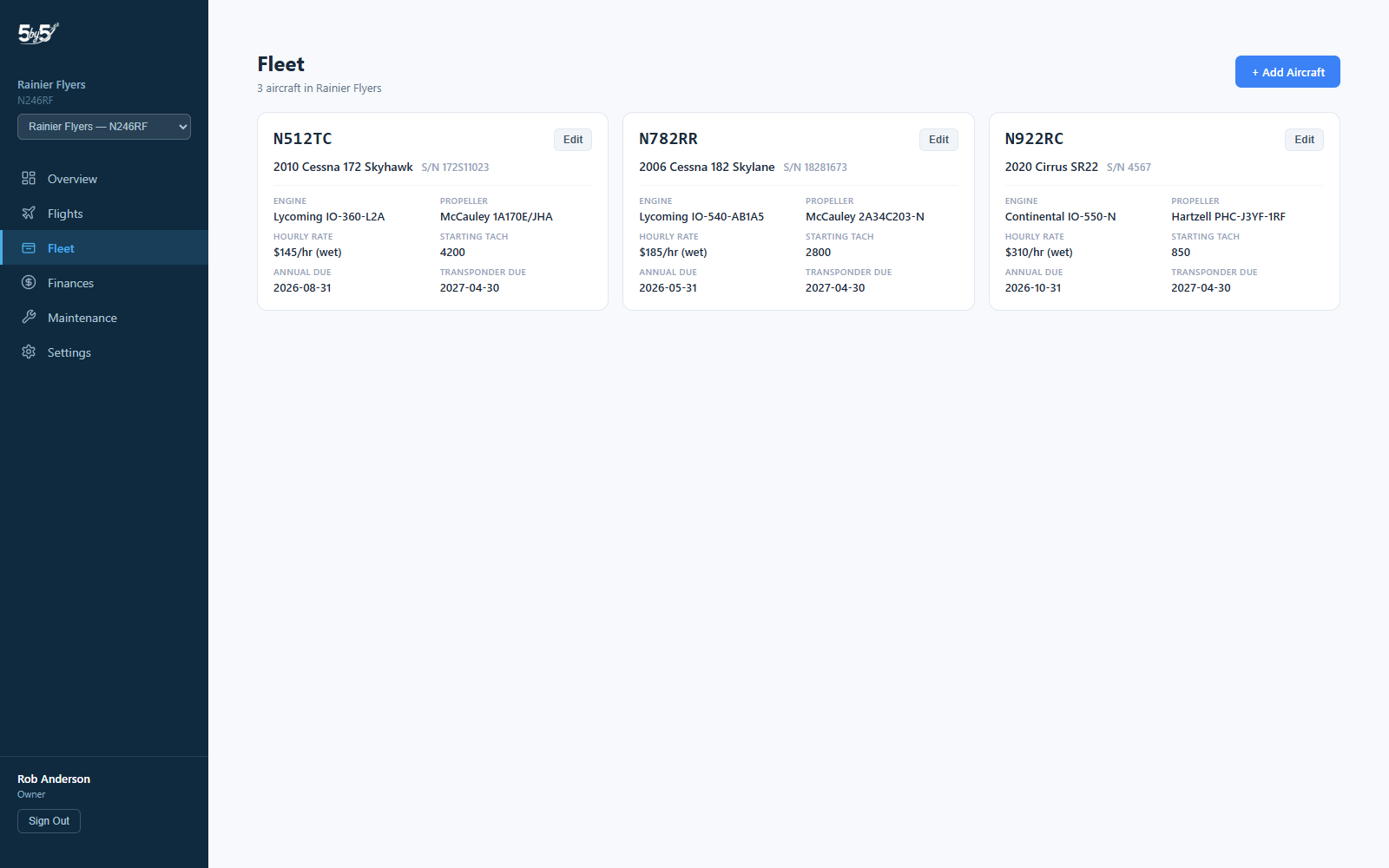
The Fleet page (/dashboard/fleet) is where Club Pro groups manage more than one aircraft — add a new airframe, edit an existing one’s full specs, or remove one that’s left the group. It’s only relevant to multi-aircraft groups; single-aircraft groups manage their one airplane from Settings → Aircraft & Group instead.
Not seeing this page, or it says multi-aircraft isn't enabled? Multi-aircraft is a Club Pro feature. If you operate more than one aircraft and want access, contact support@blueskyapplications.com.
Adding an Aircraft
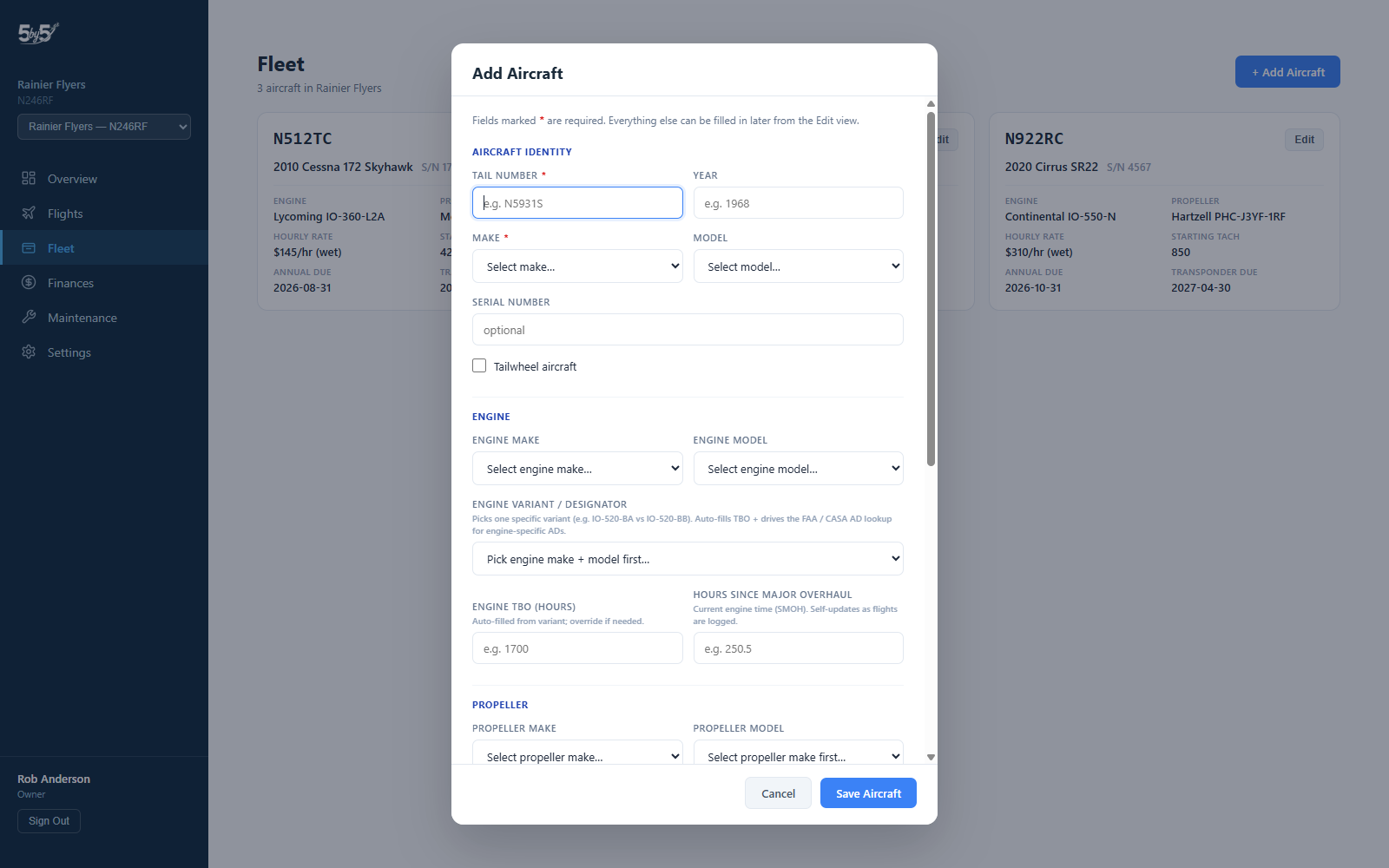
Owners and Admins click + Add Aircraft to open the Add/Edit modal, organized into labeled sections. Only Tail Number and Make are required — everything else can be filled in now or left for later.
- Aircraft Identity — Tail Number (required), Year, Make (required), Model, Serial Number, and a Tailwheel checkbox (drives day-currency landing rules the same way it does for single-aircraft groups)
- Engine — Make, Model, an auto-detected Engine Variant/Designator (picks a specific variant like IO-520-BA vs. IO-520-BB, auto-fills TBO, and drives engine-specific AD lookups), Engine TBO, and Hours Since Major Overhaul (self-updates as flights are logged)
- Propeller — Make, Model, Propeller TBO, and Hours Since Major Overhaul
- Operations & Billing — Hourly Rate, Rate Type (Wet/Dry), Starting Tach, and Time Tracking (Tach/Hobbs/Airswitch) — the same per-aircraft billing fields used in Finances
- Inspection Due Dates — Annual, Transponder, Pitot-Static, Altimeter, ELT Battery, and VOR Check
Make and Model are selected from the shared Aircraft Catalog where available, which also drives sensible defaults and AD lookups — the same catalog used everywhere else in 5-by-5.
Editing an Aircraft
Click Edit on any aircraft’s card to reopen the same modal, pre-filled, with every field editable.
The Aircraft Cards
Each aircraft in the fleet shows as a card with its tail number, year/make/model, serial number, engine and propeller identification, hourly rate, starting tach, and upcoming annual/transponder due dates — a quick-glance summary without opening the edit modal.
Removing an Aircraft
Click Edit on the aircraft, then Remove from Fleet at the bottom of the modal. This is a soft removal, not a permanent delete — the aircraft disappears from pickers and can no longer be selected for new flights, bookings, or maintenance items, but its entire flight log, bookings, maintenance history, and expenses stay on file exactly as they were, so past billing and pilot currency tracking are never lost. Contact support@blueskyapplications.com if you ever need a removed aircraft restored.
You can’t remove the last aircraft in a group — every group needs at least one. Add a replacement first if you’re swapping airframes.
Same behavior on mobile. The mobile app's Fleet management (Settings → Aircraft → Manage Fleet) uses the identical soft-removal model. See Managing Your Fleet.
Related Pages
- The Aircraft Picker — how the rest of the app switches between aircraft once your fleet has more than one
- Settings → Aircraft & Group — single-aircraft groups manage their one airplane here instead
- Finances — per-aircraft hourly rates and expense tagging